


How to Set Up goals in google ads: Primary and Secondary Conversion Goals
Here’s a step-by-step guide on how to setup Primary and Secondary goals in Google Ads. Follow these steps, and use screenshots (placeholders below) as you go in your own account. Be aware that google updates the interface frequently with same options changing their placement. Comment below if you have any questions.
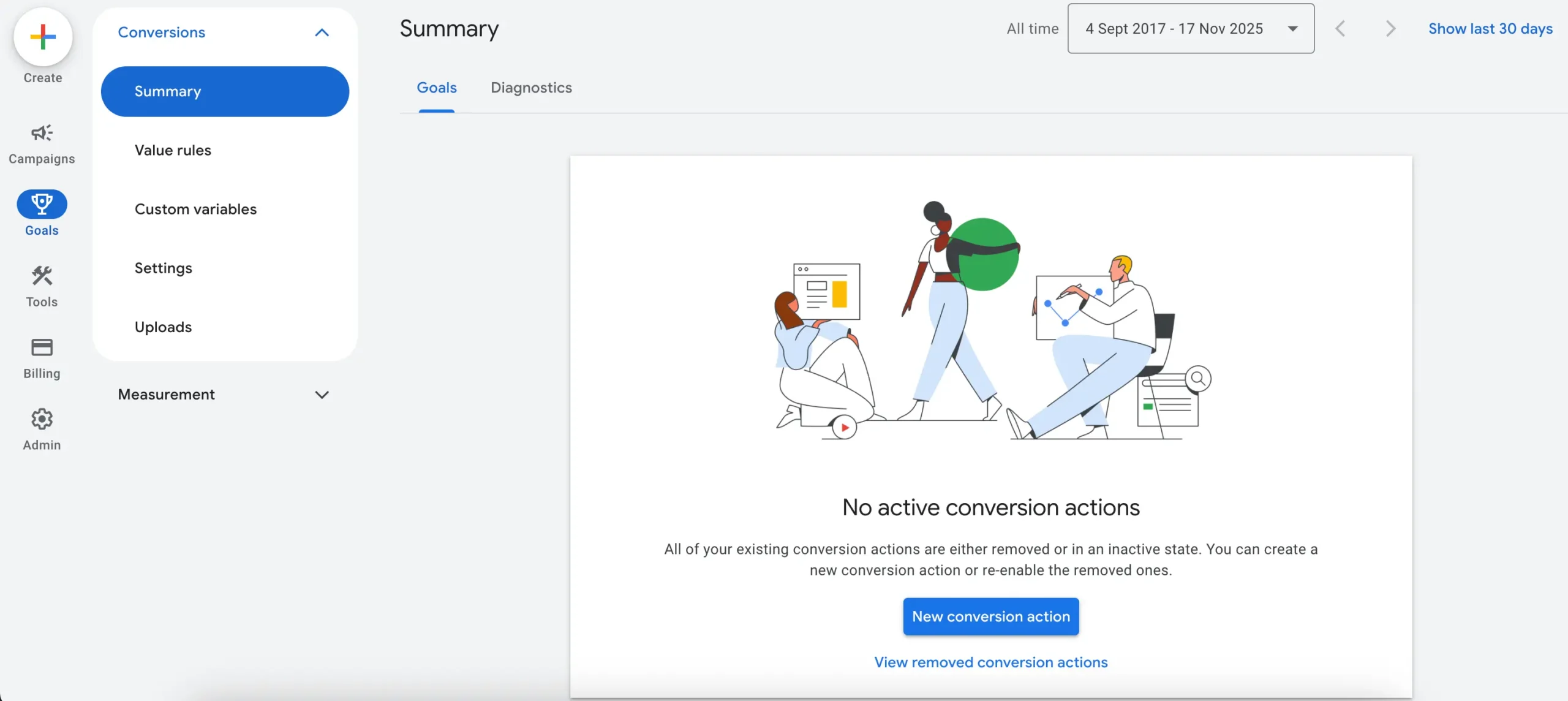
1. Open Google Ads > Go to Conversions
- Sign in to your Google Ads account.
- In the left-side menu click Goals.
- Under Conversions, select Summary.
- This opens the Conversions Summary, where you see all existing conversion actions (if created).
2. Create (or Edit) a Conversion Action
You can either make a new conversion action or edit an existing one.
To Create a New Conversion Action:
- On the Conversions Summary page, click + New conversion action.
- Choose your source from where you want to measure the conversion (mostly Conversions on website).
- Click Save and continue
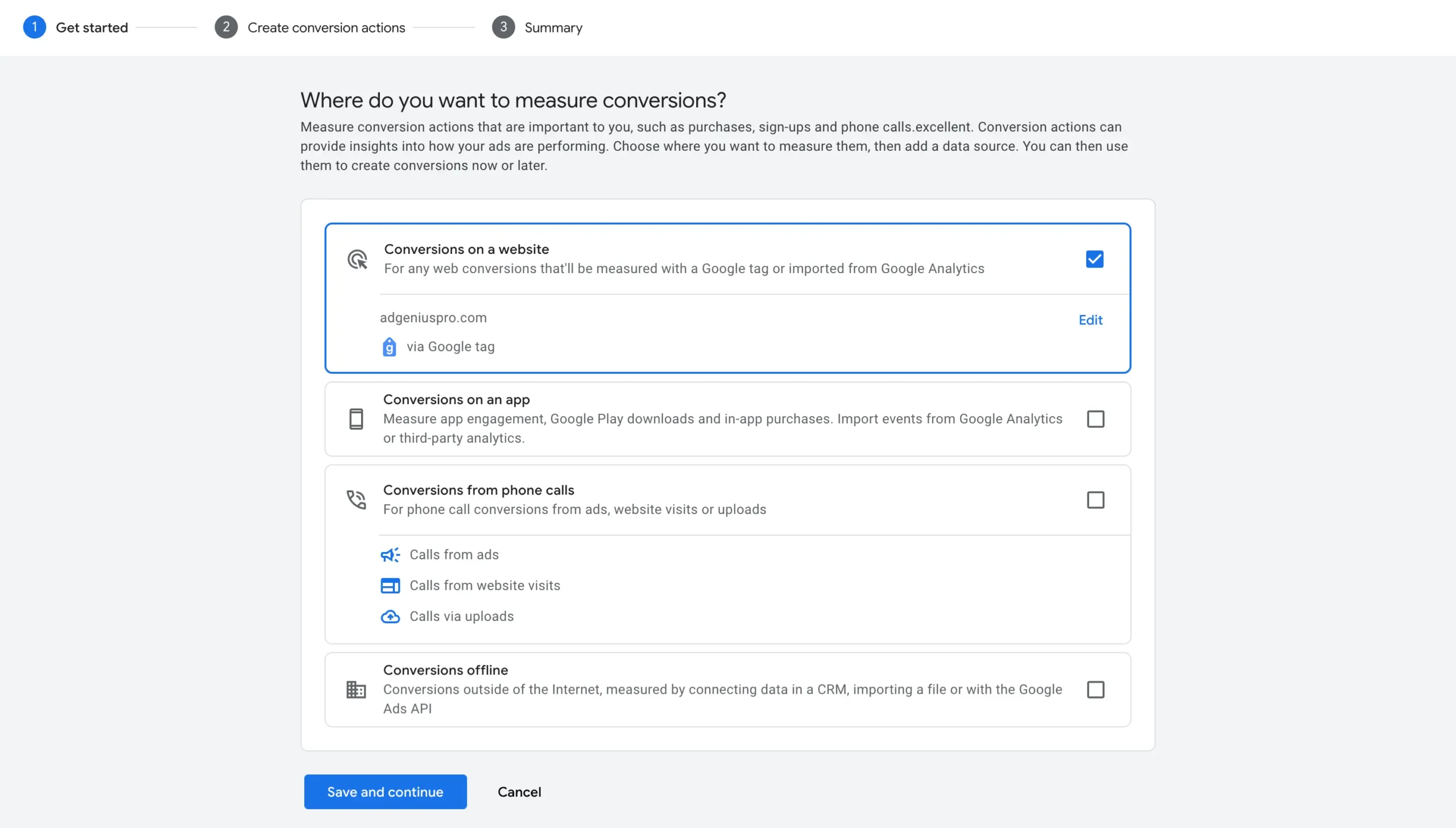
- On next page click the conversion action you want. I would choose Submit lead form for my website.
- Click Save and continue
- On next page click Add conversion actions.
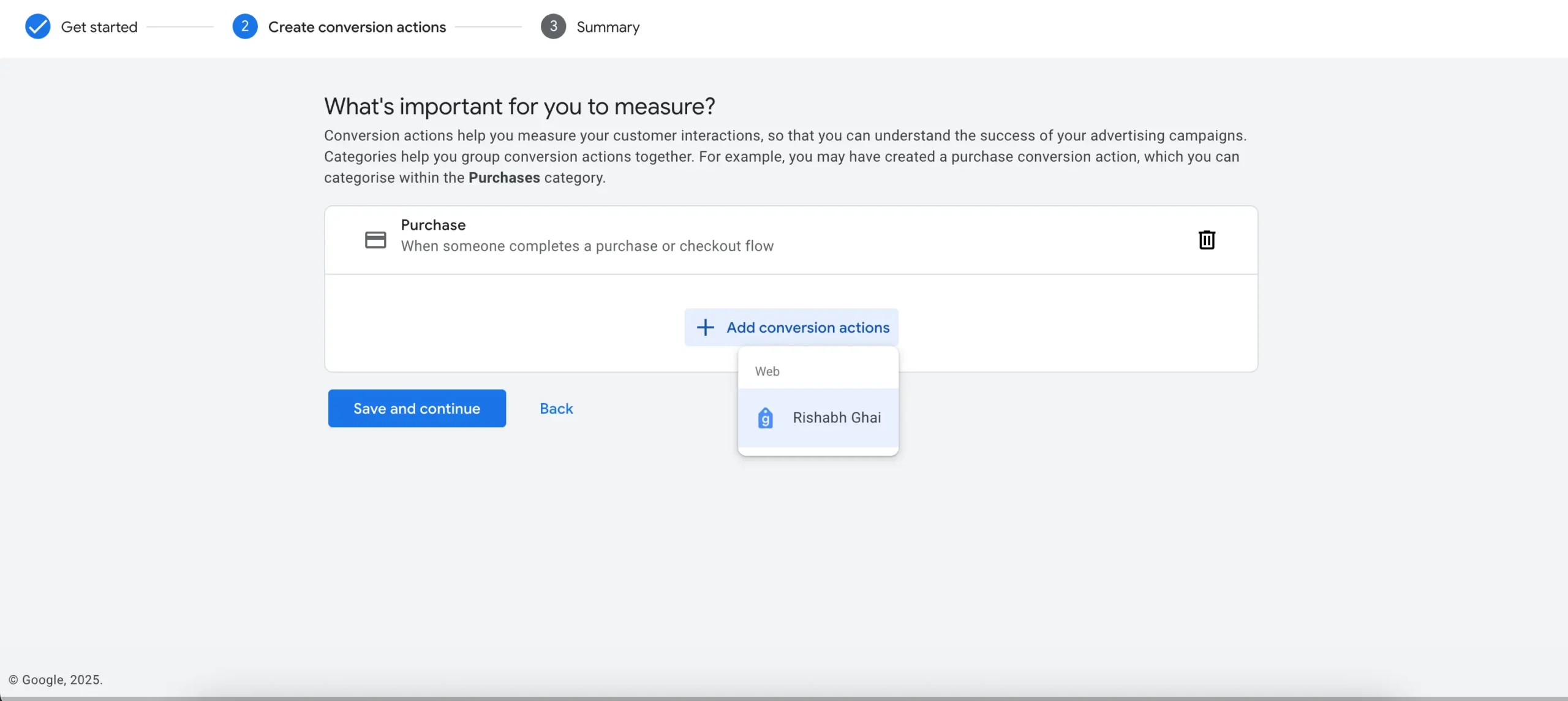
If you have already connected your website with GTM you will see GTM (Google Tag Manager) icon.
3. Create your conversion action trigger
In this tutorial we will use Set up manually using code method to setup the trigger to record a conversion.
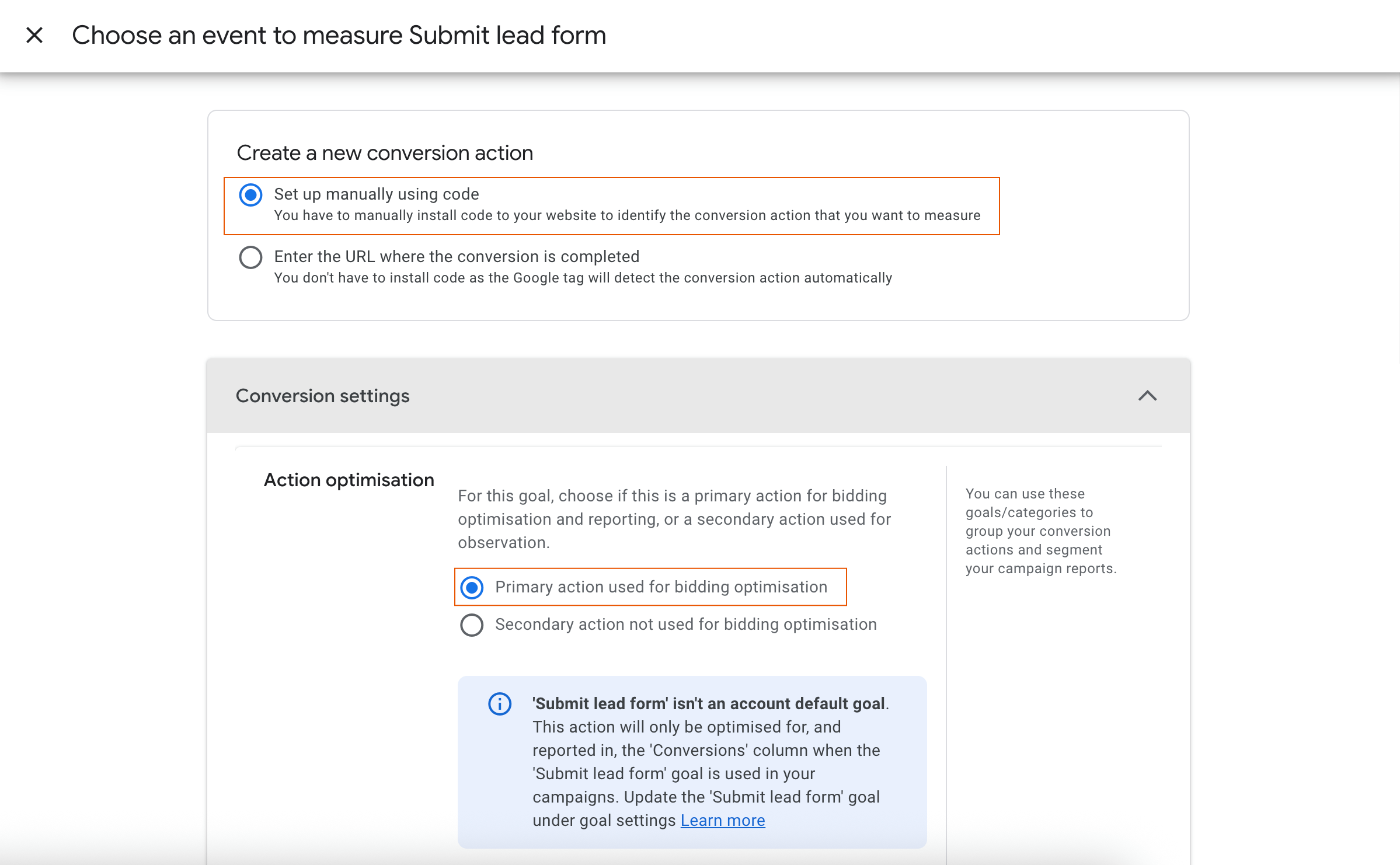
- Click Set up manually using code
- In conversion settings > Action optimisation > Primary action used for bidding optimisation
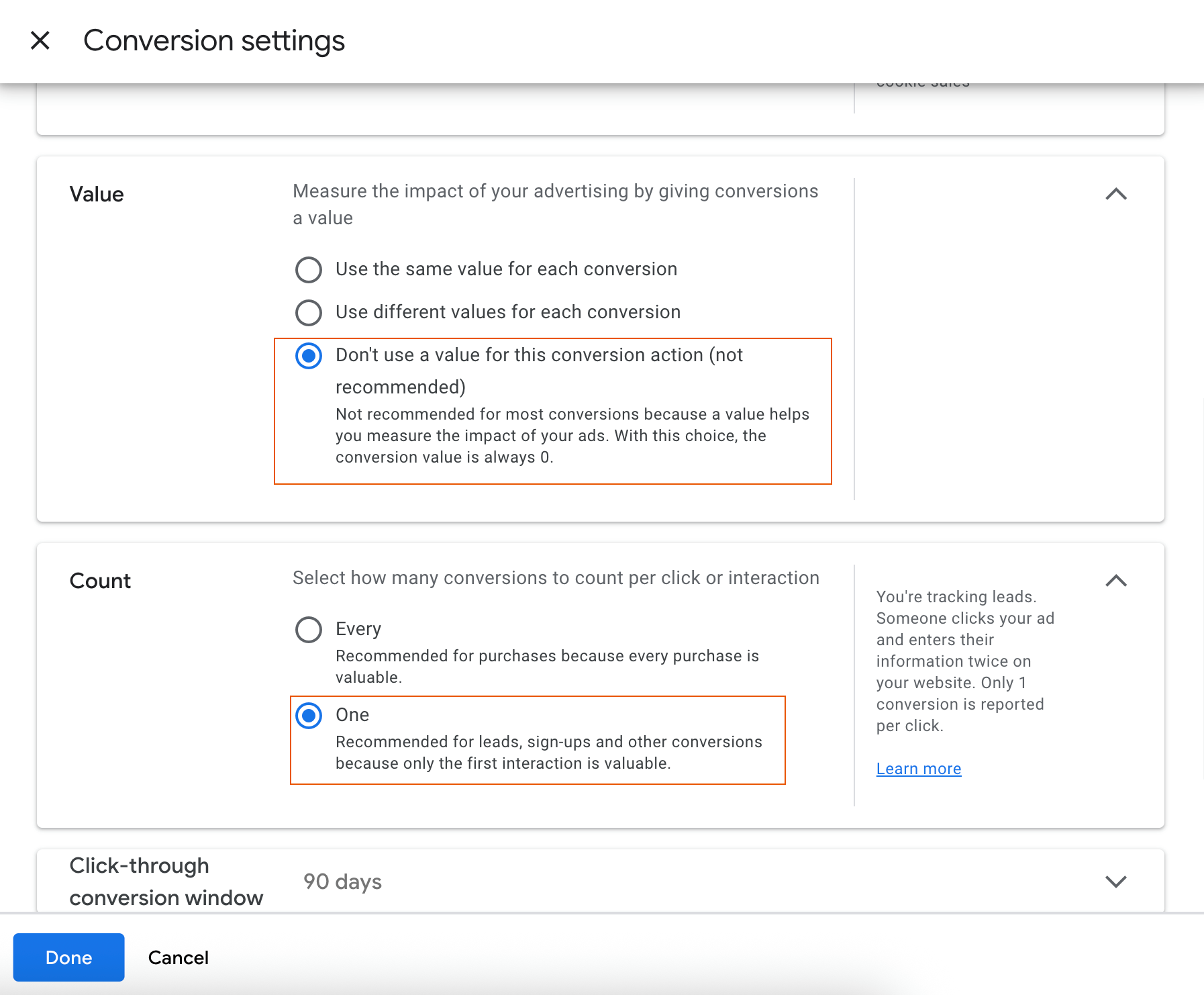
- Scroll down and in value select Don't use a value for this conversion action
- In count select One
- Scroll down & Click Done & Save and continue
4. Setup Conversion in GTM (Google Tag Manager)
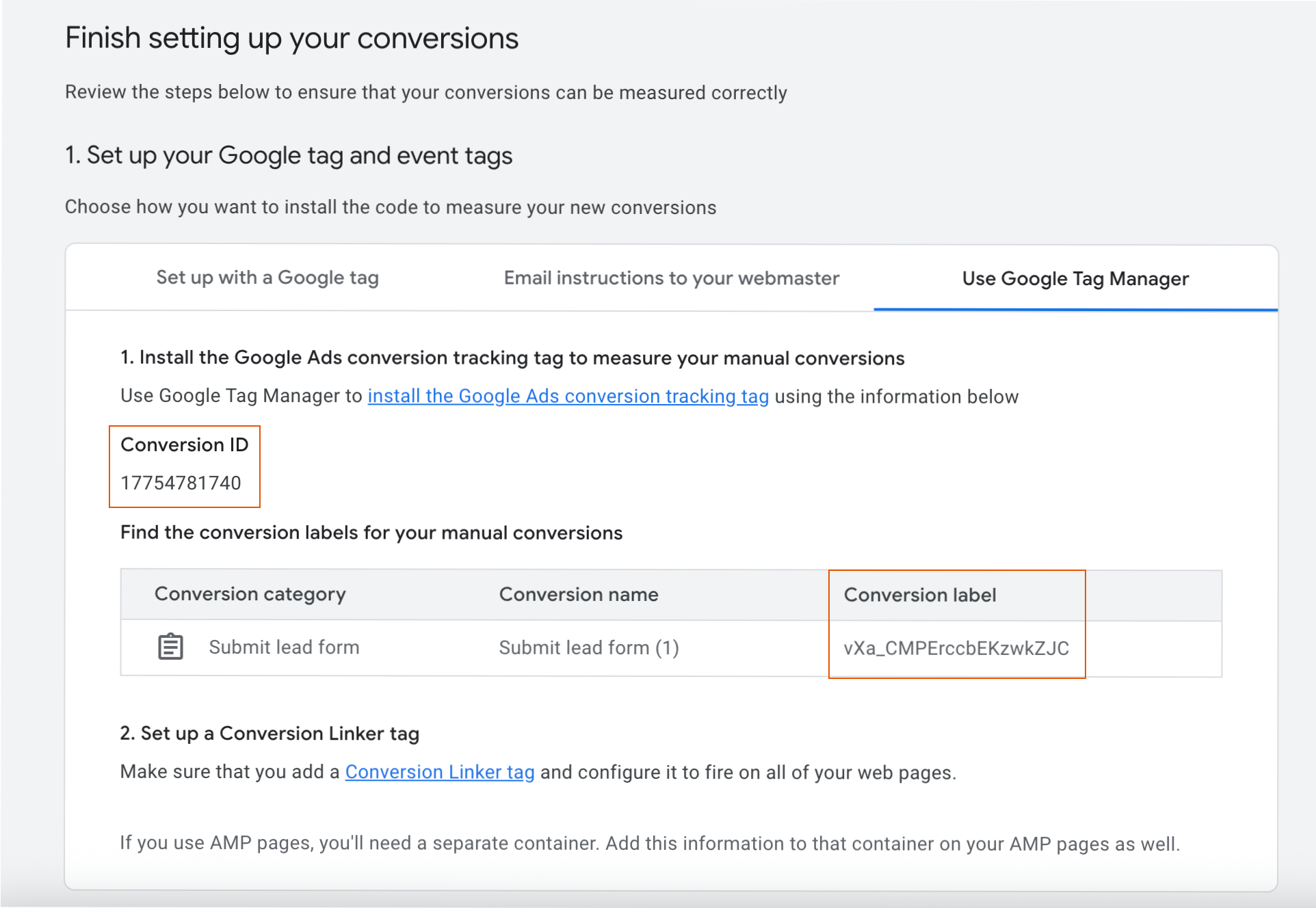
- Now you will see Tag configuration window.
- Click on 3rd tab Use Google Tag Manager
- Copy Conversion ID & Conversion Label
- Now Create new tags in GTM and Submit - See video to know how to do it.
5. Troubleshoot the Goal to make it Active
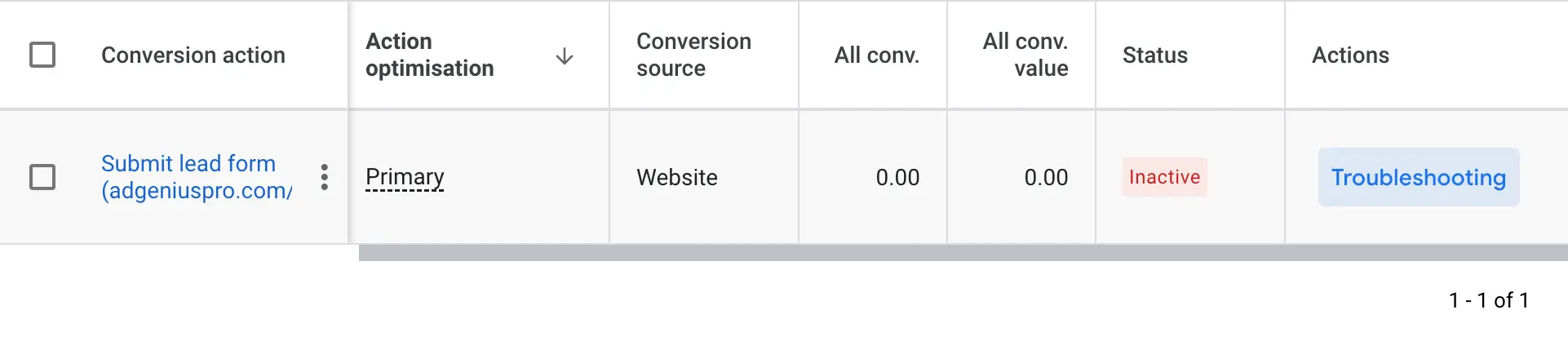
Now you will be redirected to Conversion Summary page and you would see the status of your newly created goal as Inactive.
No need to worry! Google wants us to test the goal to see if everything is working or not before making it Active.
- Simply click Troubleshooting
- Click continue on the Popup window
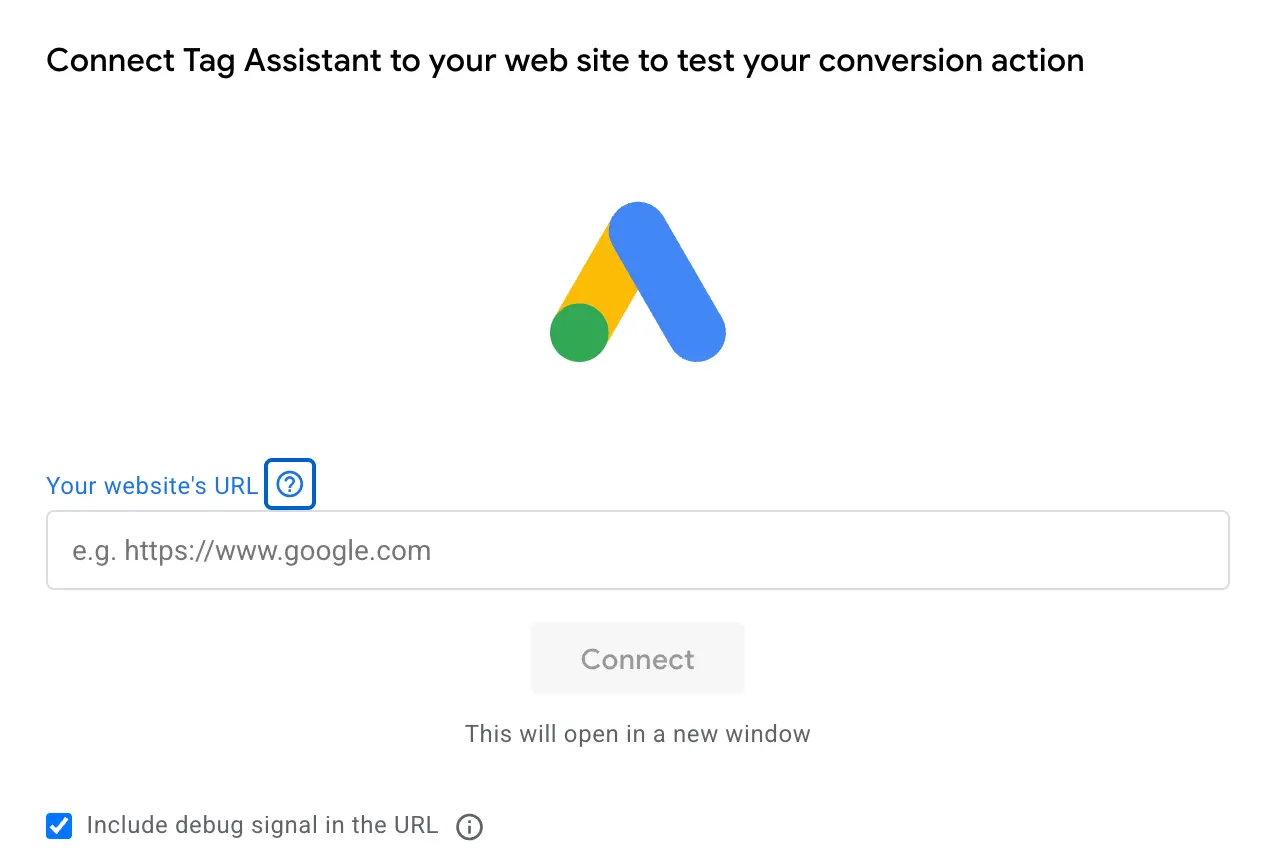
- Enter your Sucess Page URL which your used in conversion setup.
- Click Connect and let it run.
Now if everything was setup correctly you will see your new conversion goal as Active instantly or it might take upto 3 - 4 hours to get activated.
5. Create Secondary Conversion Goal
- Repeat the “Create a new conversion action” process for micro-actions you want to observe, not optimize (like page views, content downloads, or button clicks).
- When editing or creating, do not mark these as Primary; leave the “Primary / Secondary” toggle set to Secondary (as seen on step 4)
- Save each secondary conversion.
These secondary goals will populate your “All conversions” column and help you analyze user behavior.
Why This Setup Matters
Setting the correct Primary and Secondary goals ensures that Google’s bidding algorithm optimizes for actions that truly drive value, instead of low-effort or “vanity” conversions. You also gain visibility into the full customer journey, which helps you refine your funnel and improve ROI.
0 Comments